A quick checklist for reading a render and catching the most common material problems before they make it downstream.
Most material issues are visible the moment you know what to look for. As content locks down on a project, automated visual comparison systems can help catch regressions in shaders and textures before they reach QA. But automation catches drift - it doesn't replace the eye. Being able to read a render and identify the problem yourself is a skill worth developing early.
The checklist below splits issues into two tiers: red flags are definite breaks that shouldn't ship, orange flags are warning signs worth a second look.
Red Flags
These are definite breaks - a material with any of these issues should not ship.
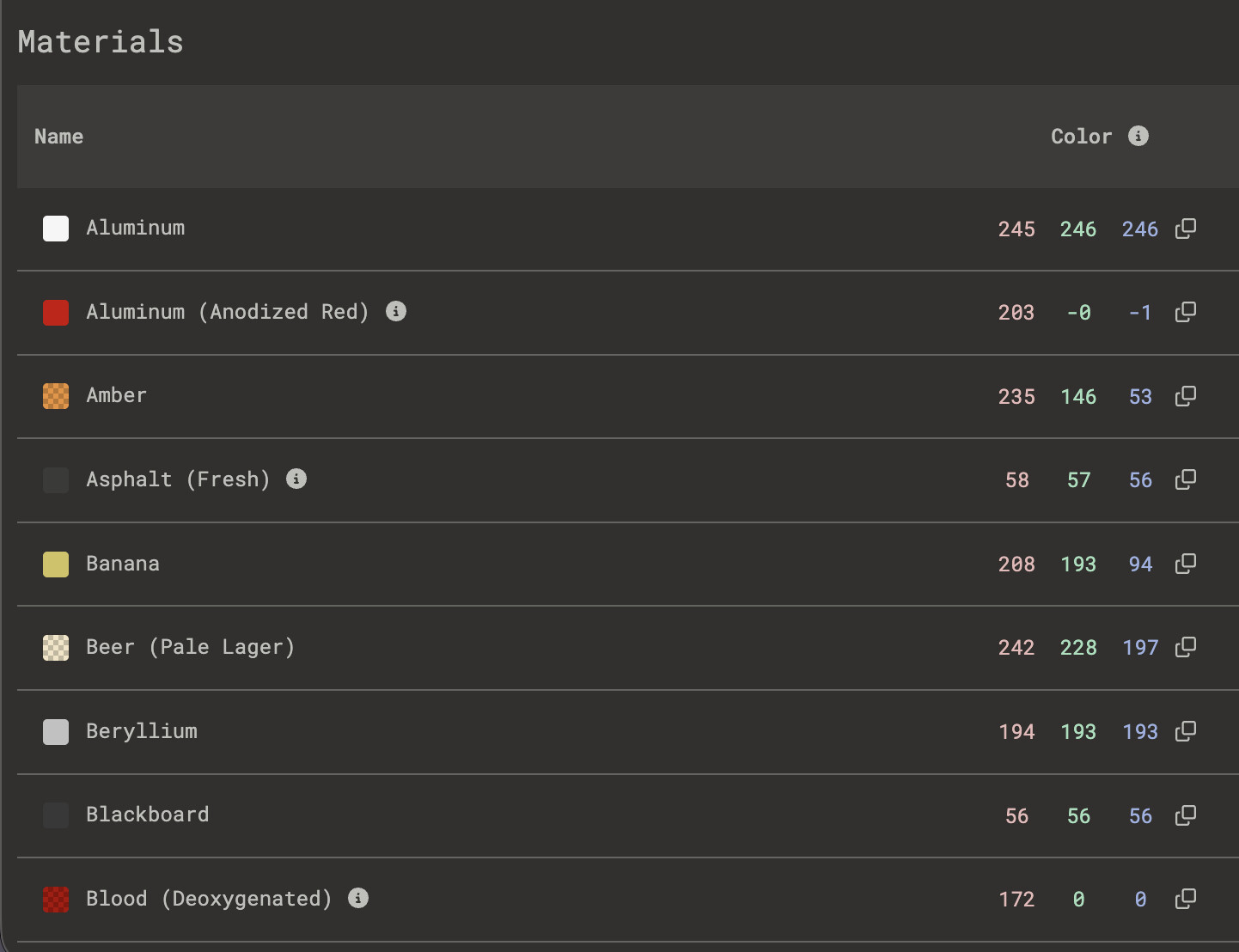
1. Albedo out of PBR range
Non-metals should fall between 30-240 sRGB. Values below 30 are physically impossible - charcoal, one of the darkest materials found in nature, sits right at 30 sRGB. Values above 240 blow out under any real lighting; snow, one of the brightest, lands at 237 sRGB. Metals sit between 180-255 sRGB.
One thing worth deciding early: whether to work in sRGB or linear values. Pick one and stay consistent - mixing the two is a common source of out-of-range errors that are hard to trace later.
2. Metalness on non-metals
Metalness is binary: 0 for dielectric (plastic, wood, fabric, skin), 1 for metal. Grayscale values between 0.2-0.8 produce physically impossible semiconductor looks. Plastic with metalness at 0.5 will have the wrong specular color and incorrect reflectance behavior entirely.
The one exception worth noting: when blending a metal with oxidization - rust streaks on steel, for example. Rust is technically a dielectric, but forcing a hard transition between metalness values tends to look wrong. A soft blend works better visually, even if it's not physically strict.
 side-by-side: of 50% gray at metalness 0 vs metalness 0.5 vs metalness 1.0 - wrong specular tint is immediately readable.
3. Inverted or broken normals
Shading that reads flat, or surfaces that appear to be lit from the wrong direction. Usually caused by a flipped green channel (OpenGL vs DirectX convention mismatch) or incorrect tangent space. Easy to spot: rotate the light and see if highlights move in the wrong direction.

Orange Flags
These are warning signs - worth reviewing, may be intentional, but usually aren't.
4. Uniform roughness
A single roughness value across the entire surface reads as artificial. Real surfaces accumulate wear, polish, and contamination unevenly. If the roughness map is a flat grey, the material will look like a render rather than a surface.

5. Tiling artifacts
Visible repeat seams or cross-pattern under any lighting angle. Most obvious on large surfaces - floors, walls, terrain. A rotating directional light will catch seams that are invisible under flat HDRI.

6. Missing micro-variation
No surface noise in roughness or normals. The material reads too clean - no fingerprints, no micro-scratches, no atmospheric deposit. Unless it's intentional (polished mirror, fresh paint), it will look like an untextured mesh.
The Light Test
Most of these issues are invisible under flat or neutral HDRI. A two-step light test exposes them fast:
- Rotate a single directional light 360° - broken normals, wrong specularity, and tiling seams all reveal themselves at specific angles that flat HDRI hides.
- Switch between overcast HDRI and direct sun - albedo out of range will blow out under direct sun; uniform roughness becomes obvious when you have a sharp specular highlight to work with.
- Add debug views in your texturing software - flag values below 30 sRGB in blue and above 240 sRGB in red. Out-of-range albedo that's invisible in a normal viewport becomes immediately obvious with a validation overlay.
© 2026 Stefan Groenewoud - All views are my own, not those of my employer.